
How to connect Claude Code with Figma MCP fast in 2026
The no-fluff setup guide for designers

👋 Hey, I’m Nar. Each week I write about product design, AI-augmented workflows, and what actually changes when you ship with LLMs in the loop.
This guide walks you through setting up Claude Code and connecting it to Figma via MCP. It is meant for designers, not developers. No prior technical experience required.

Before We Start: What You Should Know
There is no design interface. Claude Code is not a Figma-type tool. It runs inside your computer’s Terminal, or inside code editors like Cursor or VS Code. If you are expecting a visual canvas, you will not find one here. That is okay. You do not need it to get real value from this.
What you see online is not the full picture. A lot of people post impressive outputs made with Claude Code, but they rarely show the prompting work that got them there. Nobody is one-shotting a Google-quality dashboard. When you prompt it well and iterate, the results can genuinely be great. Just go in with the right expectations.
It has two-way sync with Figma. This is the part that makes it genuinely useful for designers. You can prompt Claude Code to build a screen, push it directly into a Figma file, refine it there, then pull it back into Claude and keep iterating. Design in Claude, polish in Figma, repeat.
Claude Code and Claude are not the same thing. Claude (Opus 4.6, Sonnet, and so on) is the underlying language model. It takes text in and produces text out. It cannot touch your files or your system. Claude Code is the tool that runs in your terminal. It has direct access to your file system, can read and edit files, and can build things. The model is the brain. Claude Code is the hands.
Step 1: Install Claude Code
Open your Terminal. On a Mac, press the search icon at the top of your screen at the operating system level, not inside your browser. Search for Terminal and open it.
Head to the Claude Code documentation at https://code.claude.com/docs/en/overview#terminal and find the install command for your operating system. On Mac, copy this line:
curl -fsSL https://claude.ai/install.sh | bashPaste it into your Terminal and press Enter. Once it finishes, Claude Code is installed.
To open a Claude Code session, open a new Terminal window, type claude, and press Enter. This launches Claude Code and you are ready to work.
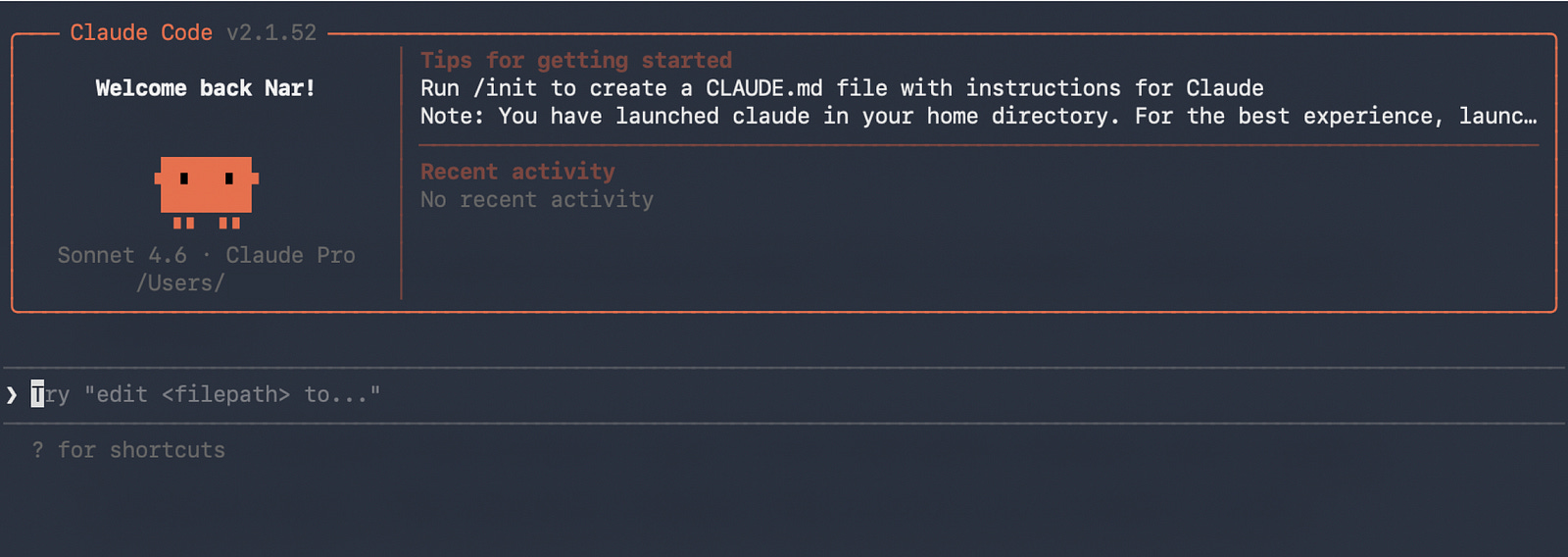
If you run into any errors during installation, take a screenshot of what your Terminal is showing, upload it to Claude or ChatGPT, and ask it to walk you through the fix. AI is genuinely good at troubleshooting this kind of thing.
Step 2: Connect Figma MCP
With Claude Code running in your Terminal, head over to Claude’s documentation and copy this command:
claude mcp add --transport http figma-remote-mcp https://mcp.figma.com/mcpPaste it into your Terminal and run it. Once that completes, run this second command:
/plugin install figma@claude-plugins-officialThat should show as installed. Now type / and press Enter. A menu will appear. Use the arrow keys to navigate from Discover to Installed, then press Enter.
From here you will go through the process of authenticating the Figma remote MCP server. Follow the steps as they appear on screen.
At some point, a browser window will open asking you to agree and allow access. Before you click agree, make sure you are logged into the correct Figma account. If you work across multiple Figma accounts, double check this step.
Once you allow access, you are connected. Claude Code is now talking to Figma via MCP.
Step 3: Test the Connection
Copy the URL of any Figma file you want to work inside. Then, back in your Claude Code terminal, type a prompt and paste the Figma link at the end. Something like:
“Build a task manager app home screen with a task list, and a button to add a new task.” [paste your Figma file URL]
Run it and watch what happens. Claude Code will read the file, build the interface, and push the result into your Figma file as editable frames. Not a screenshot. Real layers you can work with directly on the canvas.
This first test is just to get your feet wet. From here, the more specific and considered your prompts, the better the output.
What Claude Can See and Do
Once connected, the pipeline flows in both directions. Figma announced this integration on their official blog in February 2025.
From Figma into code. Claude reads your component structure, spacing values, border radii, font sizes, color tokens, Auto Layout configuration, and layer hierarchy. It then generates code that reflects them precisely. No estimating. No manual transcription. If you have a component called CardSurface/Elevated or a token called color/brand/primary, Claude references it by name and uses it correctly.
From code into Figma. Claude builds a working UI and captures it as editable Figma frames. Real layers, ready to annotate, duplicate, rearrange, and refine on the canvas. You can capture an entire flow in one session and lay it out in sequence.
Ask questions about your design. You can ask things like “What is the padding on the modal container?” or “How many variants does this Button component have?” and get accurate answers pulled directly from the file.
Why This Matters Right Now
The tools that developers are excited about today will be built into friendlier software eventually. By the time that happens, you want to already understand how they work. Ignoring Claude Code because it feels too technical is a reasonable short-term instinct and a poor long-term strategy.
The two-way sync means you are not locked into one tool for the entire process. Prompt Claude Code to build a screen, push it into Figma, refine the spacing and typography there, then pull it back into Claude to keep building. Each tool does what it is actually good at.
You also skip a significant amount of repetitive work. Generating multiple layout variations, exploring component structures, producing a first draft of a screen: these are things Claude handles quickly. You spend your time on the decisions, not the production.
A Few Things to Keep in Mind
Capturing live UI back to Figma requires the remote Figma MCP server and is currently supported in Claude Code only, not other editors.
Very large files with hundreds of components may take a moment to process on first load.
The connection reads your file at the point in time you reference it. If you update the file, re-reference it to give Claude the latest version.
Prompt quality matters a lot. Vague prompts produce vague results. The more context you give, the better.
The Shift
Claude Code with Figma MCP removes the step between what you intend and what gets built. Your decisions, made in Figma, flow directly into implementation. What Claude builds flows right back into Figma for you to refine.
Design and code, finally in the same loop.